NewsFeed NewsFeed

NewsFeed

NewsFeed

Follow improvements and changes across Webfactory websites, services and products.

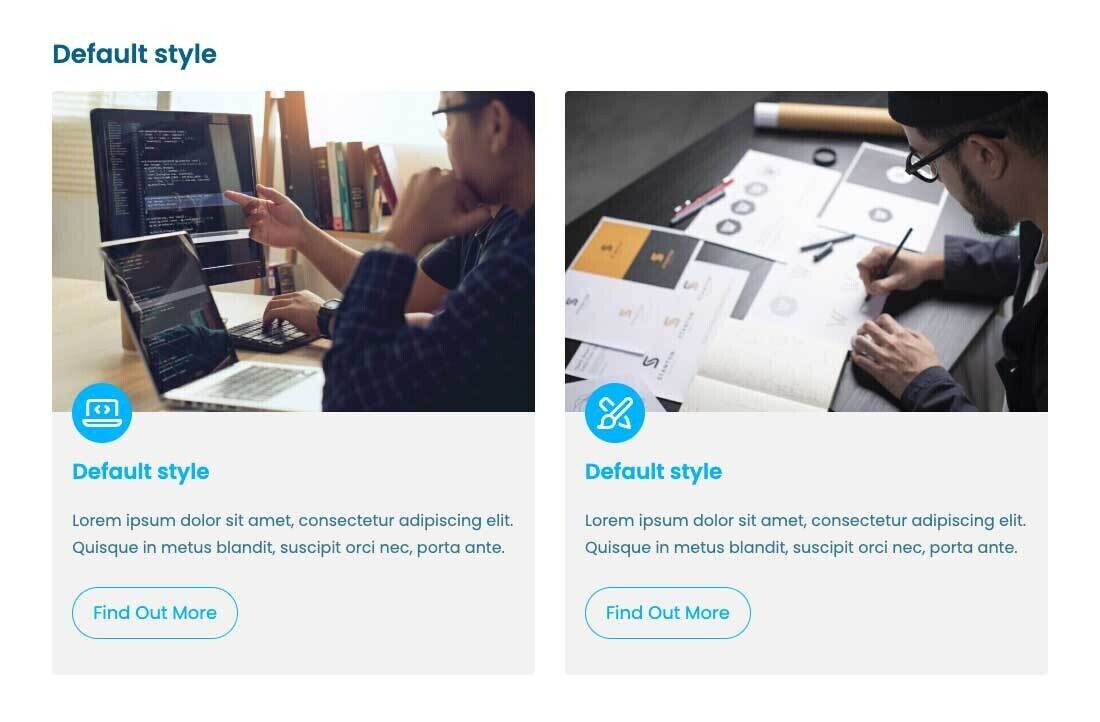
We've added a brand new Feature Box element that combines both an image and an icon in a single design.

This new element makes it even easier to showcase your products, services or key features in a more engaging and visually appealing way. Pair an eye-catching image with a relevant icon to help draw attention to important information while maintaining a clean, modern layout.

The new Feature Box is available now for customers with the Enhanced Website Editor.

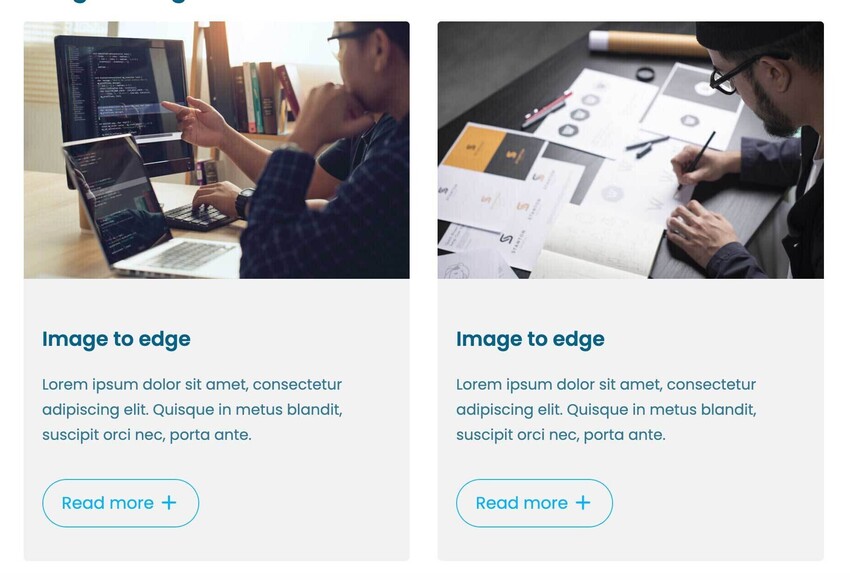
A screenshot of Webfactory's new Image Featurebox element with icon
The new Image Featurebox element with icon

Make it even easier for visitors to get in touch with your business. Customers can now add a floating WhatsApp contact button to their website.

The button appears discreetly at the bottom of every page, giving visitors a quick and familiar way to start a conversation with your business. When selected, WhatsApp opens with your chosen number, and you can even provide an optional pre-filled message to help visitors get started.

Features include:

  • Choose from an icon only, WhatsApp label, or chat prompt style.
  • Display the button in the bottom-left or bottom-right corner of your website.
  • Set the WhatsApp number that will receive enquiries.
  • Add an optional opening message for visitors to review before sending.
  • Enable or disable the button at any time.

Once the upgrade has been added, you can configure the button by going to Settings > WhatsApp Button in your Website Manager.

We’ve introduced two new elements for presenting content: Expandable Feature Boxes for images and icons.

Each feature box can now include an image or icon, a title, a short introductory text, and a longer detailed section. The introductory text is shown by default, and a “Read more +” button allows users to expand the box to reveal the full content when needed.

A screenshot of the new Expandable image feature box element in Webfactory's Website Editor
New: Expandable Image Feature Box element
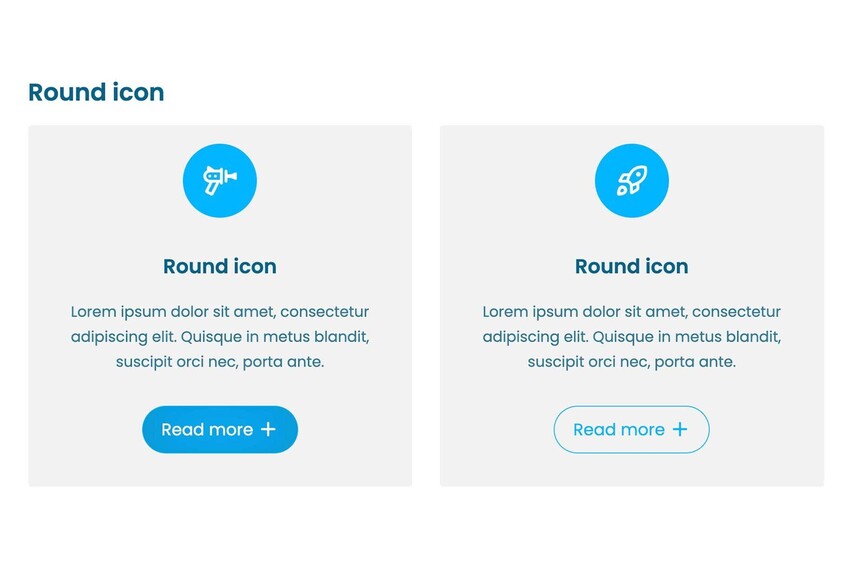
A screenshot of the new Expandable icon feature box element in Webfactory's Website Editor
New: Expandable Icon Feature Box element

We’ve introduced three new Price List elements to give you more flexibility when displaying services and pricing in the Website Editor.

Previously, pricing information was typically presented using standard tables or basic list elements. While effective, these options don’t always translate well across different screen sizes, particularly on mobile devices. The new components are designed to improve both readability and responsive behaviour.

Basic Price List element

A simple, structured list for displaying services alongside their prices, with optional descriptions for each item.

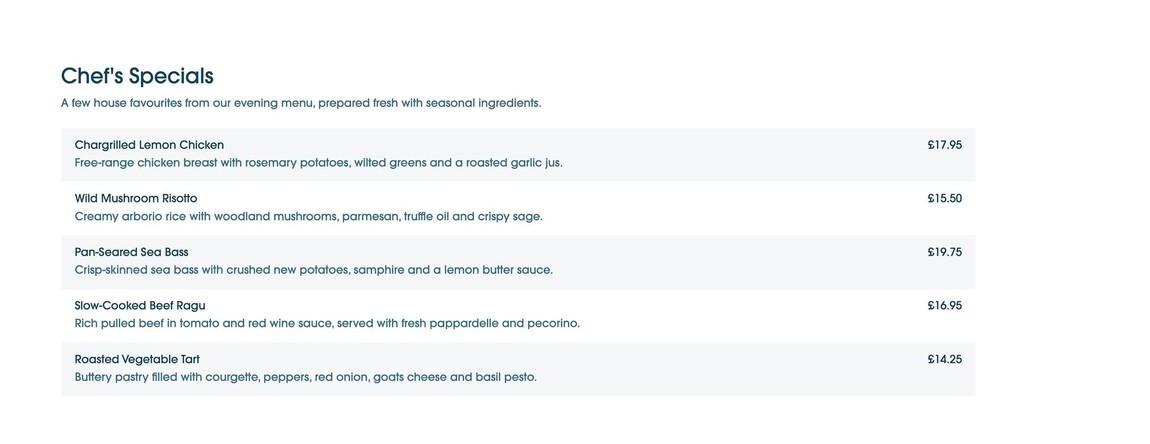
Screenshot of the Basic Price List element in Webfactory's Website Editor
Screenshot of the Basic Price List element

Sectioned Price List element

Similar to the basic version, but allows you to group services into clearly labelled sections. Ideal for categorising offerings such as “Haircuts”, “Colouring”, or “Treatments”.

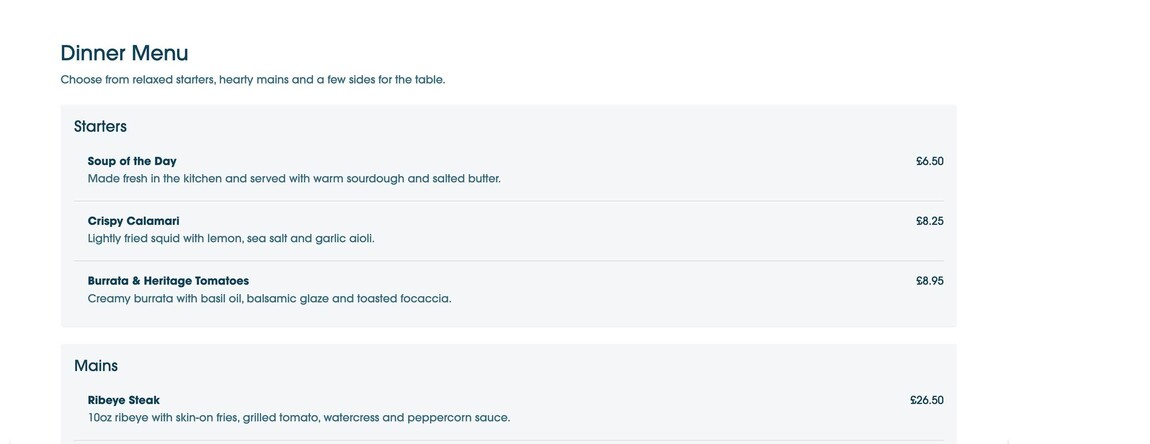
Screenshot of the Sectioned Price List element in Webfactory's Website Editor
Screenshot of the Sectioned Price List element

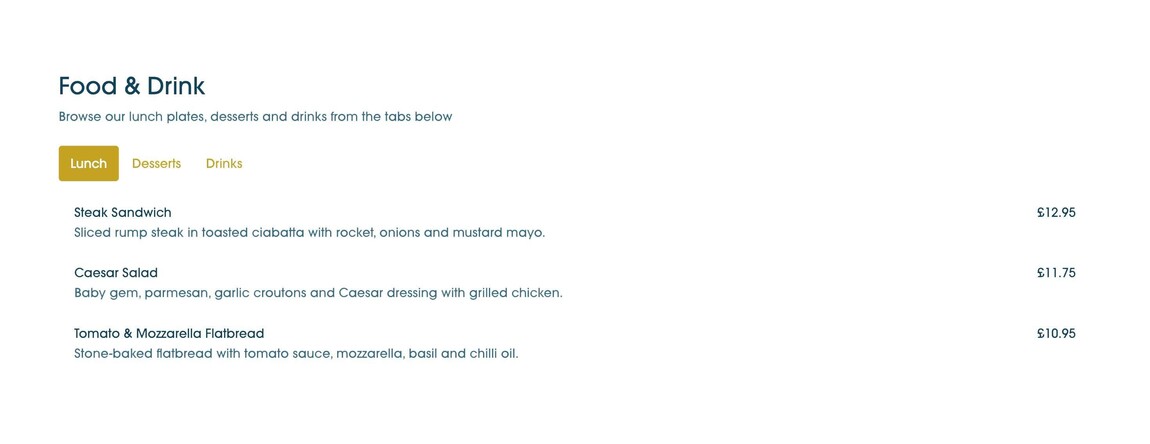
Tabbed Price List element

An enhanced version of the sectioned layout where each category is presented in tabs instead of stacked sections, making it easier for users to switch between service groups without scrolling.

Screenshot of the Tabbed Price List element in Webfactory's Website Editor
Screenshot of the Tabbed Price List element

You can now choose where visitors are sent after they submit a form on your website.

In the Website Editor, form settings now include an option to either show the usual confirmation message or redirect visitors to a selected page after the form has been submitted.

This is useful if you want to send visitors to a dedicated thank-you page, booking page, download page, or another next-step page after they get in touch.

Existing forms will continue to work as they do now unless the new redirect option is selected.

We have extended custom URL support in the website editor.

As well as standard pages and article pages, custom URLs can now also be set for webshop products, itemlister items and property listings.

A custom URL lets you control part of the page address, sometimes called the URL slug. For example, a product called Blue Widget might use the URL slug blue-widget.

For webshop products, itemlister items and property listings, the full URL will still include some IDs that are required by the website system. The improvement is that the URL can now also include direct keywords, making it clearer and better for SEO than a URL based only on system IDs.

By default, URLs are still created from the product, item or property name. If you want more control, you can enable the custom URL option in the relevant settings area and enter your preferred URL slug.

This can be useful for creating shorter, clearer URLs, improving consistency, or keeping an existing URL when an item name changes. The URL is checked before saving, so you can see whether it is available.


You can now set custom page URLs for standard pages and article pages in the Website Editor.

A page URL, sometimes called a URL slug, is the final part of the page address. For example, a page called About us might have the URL slug about-us, giving it a page address like /about-us.

By default, page and article URLs are still created from the page or article name. If you want more control, you can now enable the custom URL option in the SEO/settings area and enter your preferred URL slug.

This can be useful if you want a shorter, clearer or more SEO-friendly URL. For example, an article with a long title could use a shorter URL slug, or a page could keep an existing URL even if the page name changes.

If a page or article has a custom URL enabled and the name is changed, the editor will now ask whether you want to keep the existing URL, use the suggested new URL, or enter a different one. The URL is checked before saving, so you can see whether it is available.
You can now add a Translation Widget to your website, making it easier for visitors to view your content in different languages.

The widget adds a language selector to the top of your website and uses Google Translate to translate your site content into the languages you choose. You can select up to 4 languages and choose either a dropdown selector or flag icons.

You can request this add-on from the Add-ons section of your Welcome Pack, or from the Upgrades section in your website editor once your site is live.

It is now easier to link directly to sections on your website pages.

In the Website Editor link dialog, you can choose a page section from a dropdown instead of typing a section ID manually. Sections are grouped by page and use clearer labels where possible.

Same-page section links have also been improved so they scroll more smoothly and account for fixed or sticky headers.